Build a board. Plan the look.
A wardrobe for the season, a room you are redoing, a trip you are dreaming about. Pictures in rows, your notes between them, and the shopping list right underneath.
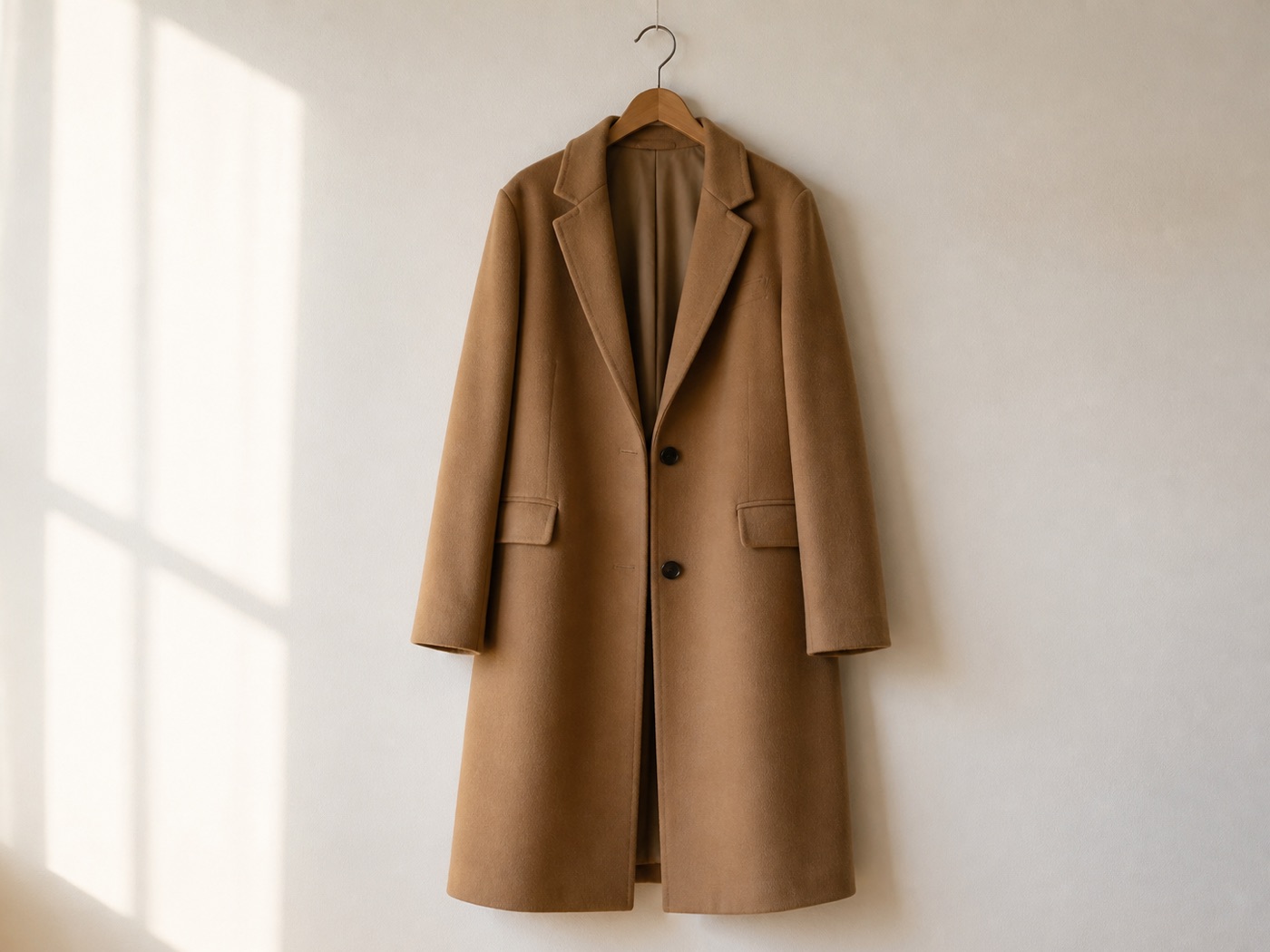
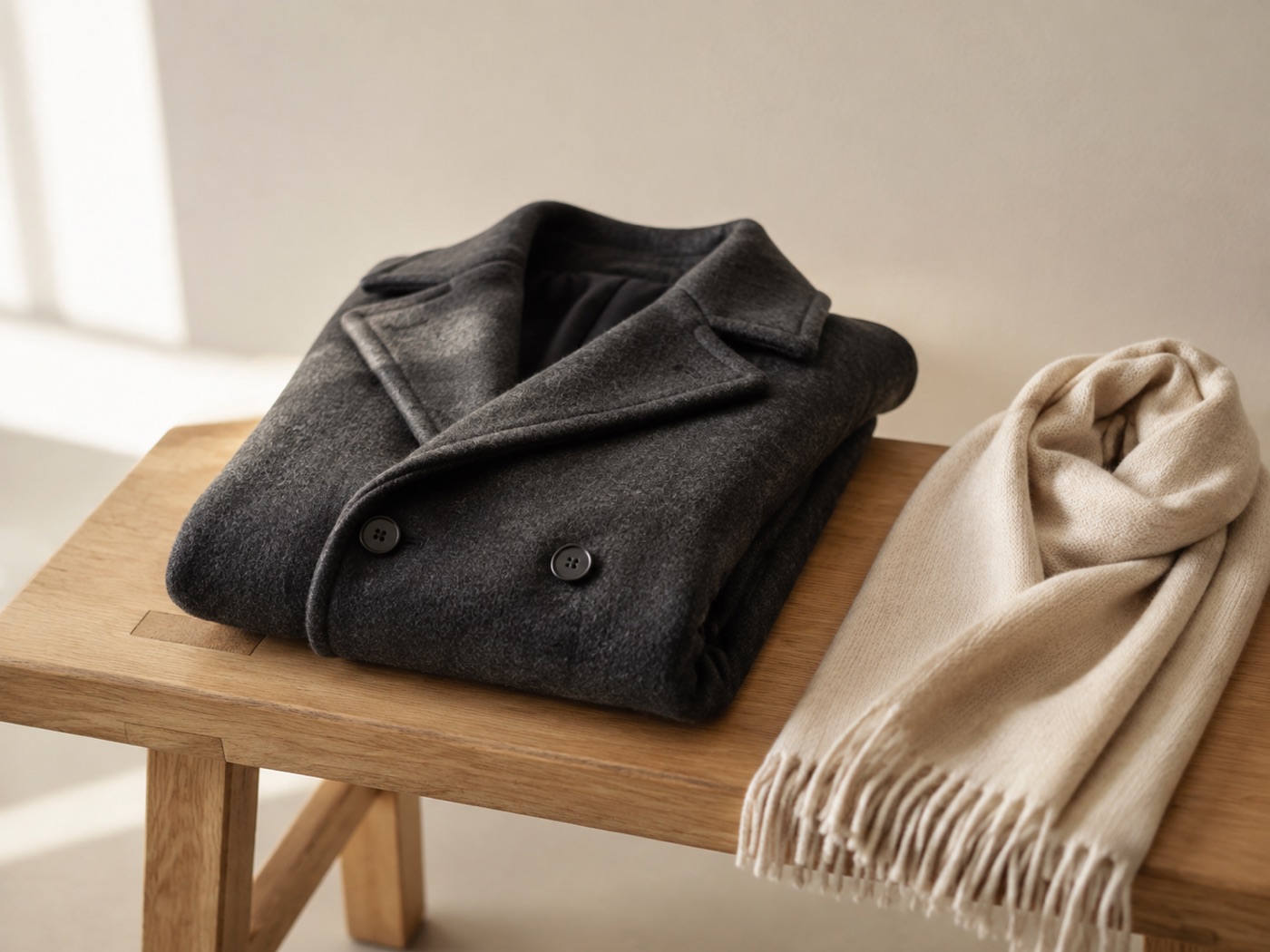
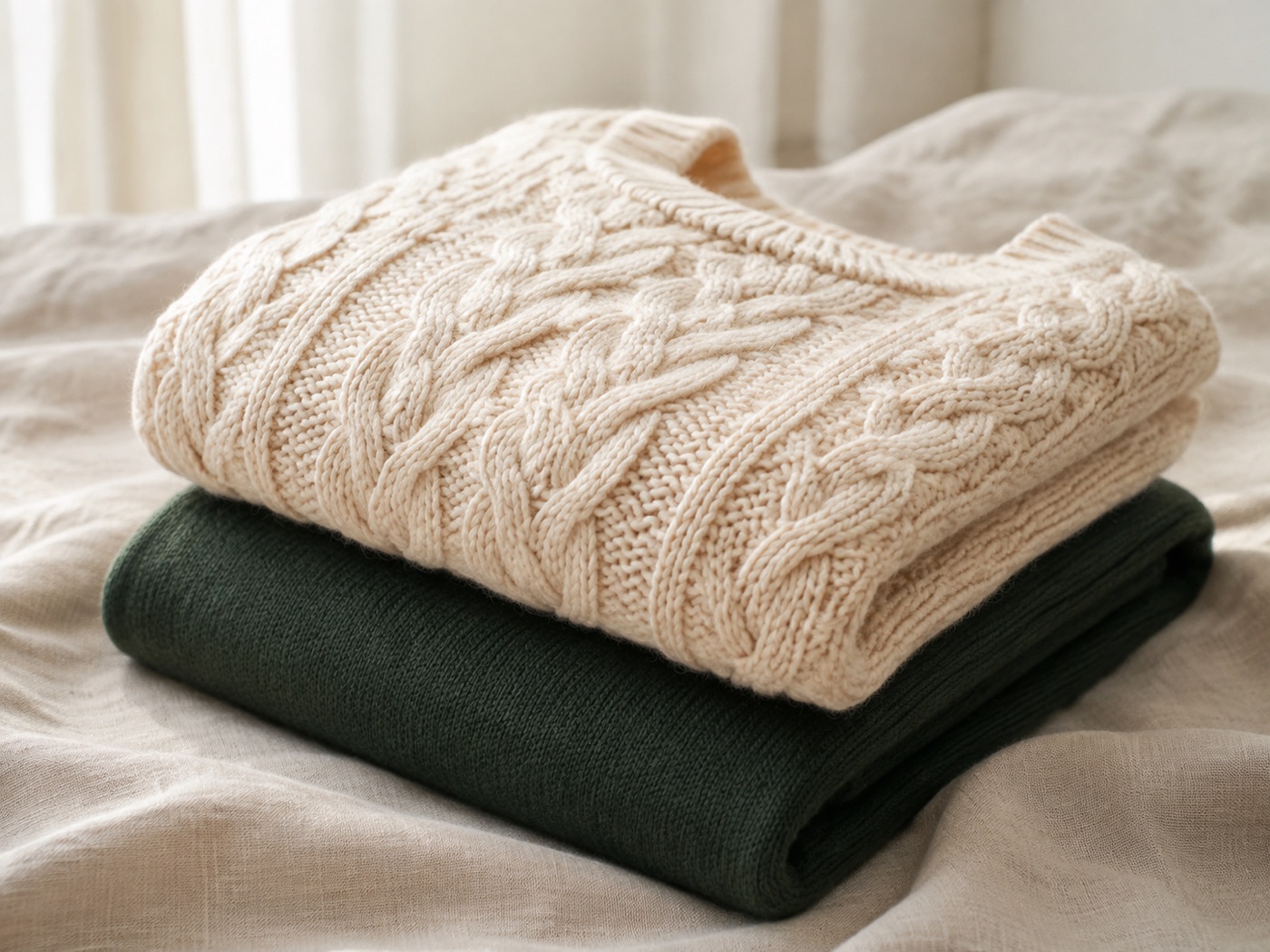
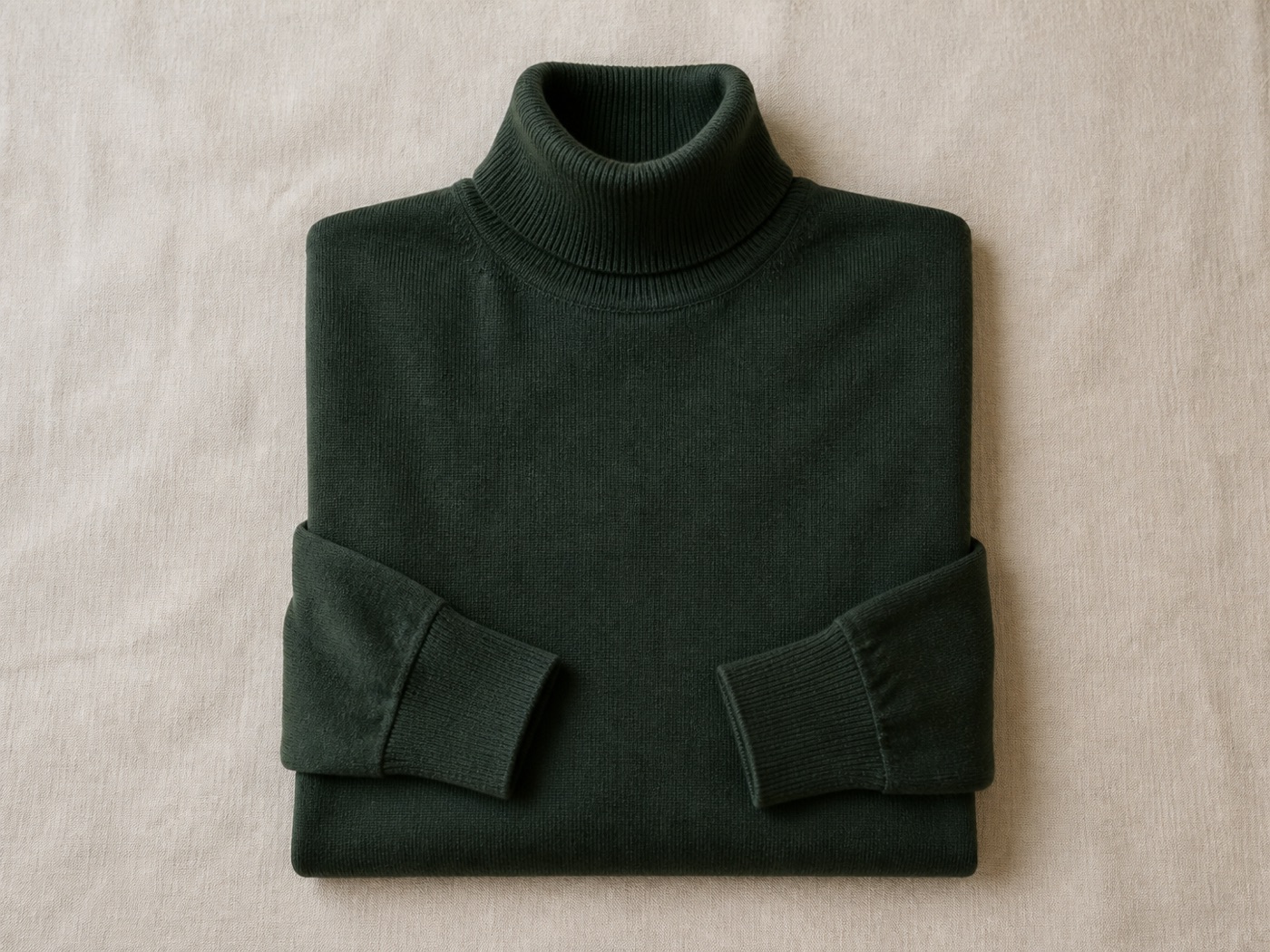
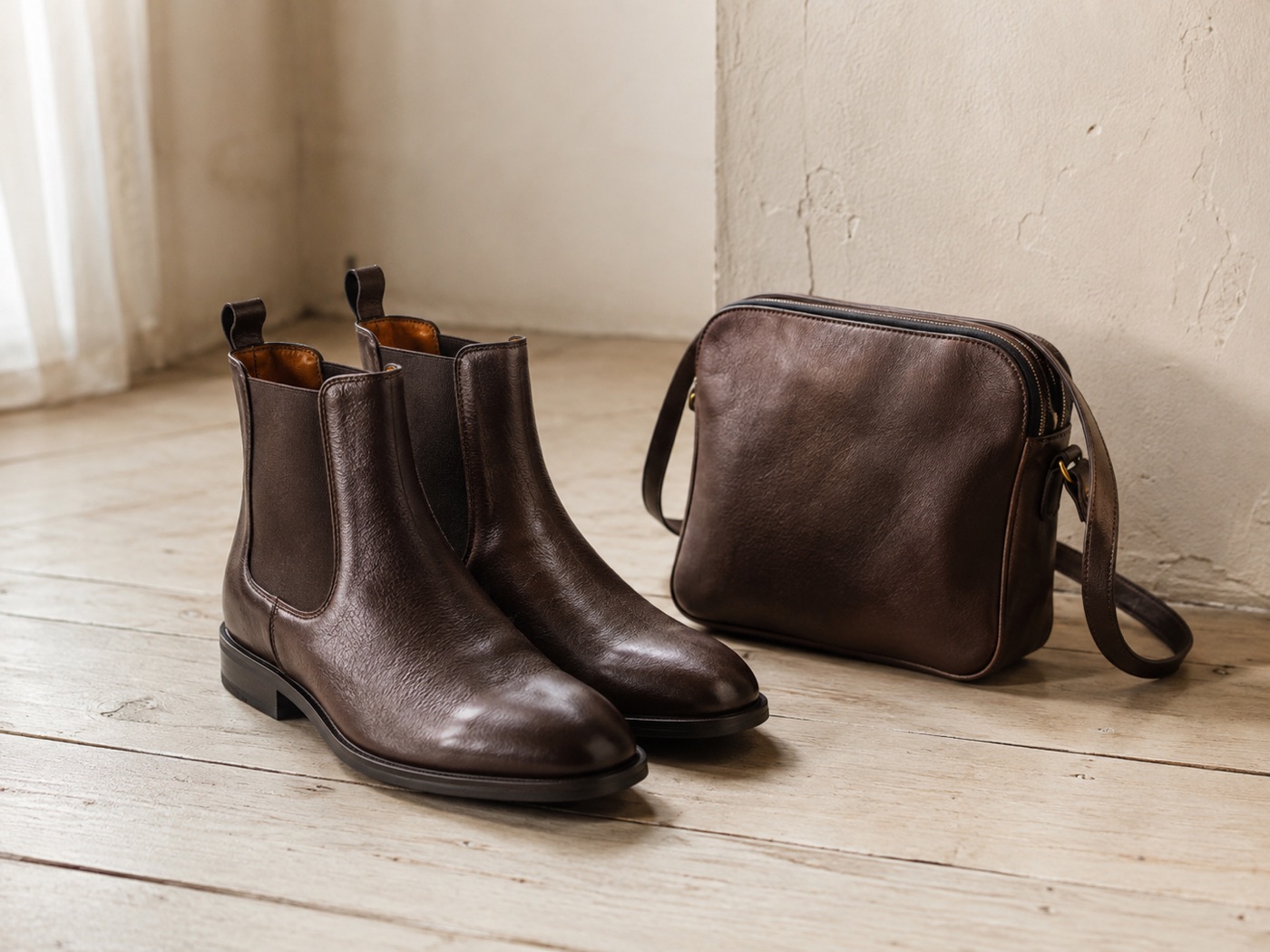
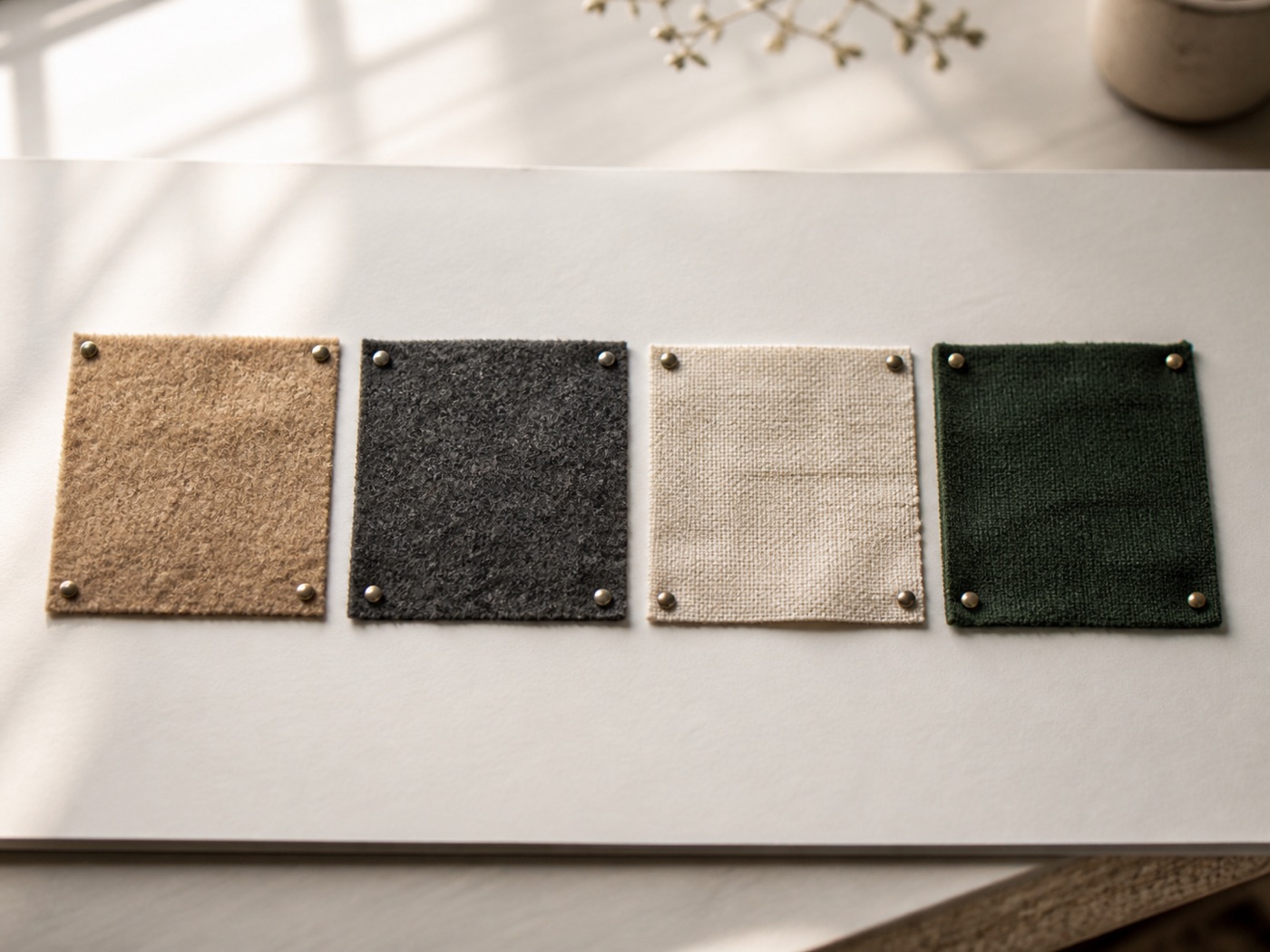
Pins in one app, screenshots in the camera roll, receipts in email, the list of what is still missing in a note somewhere. The look lives in four places and none of them talk.
- Photos in a grid, notes in between.Paste or drop pictures onto any line; they tile under it. The palette, the rules and the to-buy list are just lines above and below.
- Move pictures between boards.Drag a picture onto another board and it moves; drag it into empty space and it starts a new one.
- Click to enlarge, write on the picture.A picture opens in place, the others flow around it, and a note under it saves where you got it.
- Find it by what is in it.Search “camel coat” and the coat comes up: AI describes each photo for search. One switch in Settings turns AI off.
A board is just a list with pictures in it.
Start with the rules and the palette as two lines. Put the pictures under the lines they belong to. When the season changes, collapse the board and start the next one under it.
Images, PDFs and any other file attach to any line, up to 100 MB each (500 MB on Premium).
Search for the thing in the picture.
Search for a camel coat or the words on a saved label instead of its file name.
“Image content” and “Text in image” are the reasons a result gives when a photo matched. Both come from AI, which is on unless you turn off “Allow sending to AI models” in Settings → General.
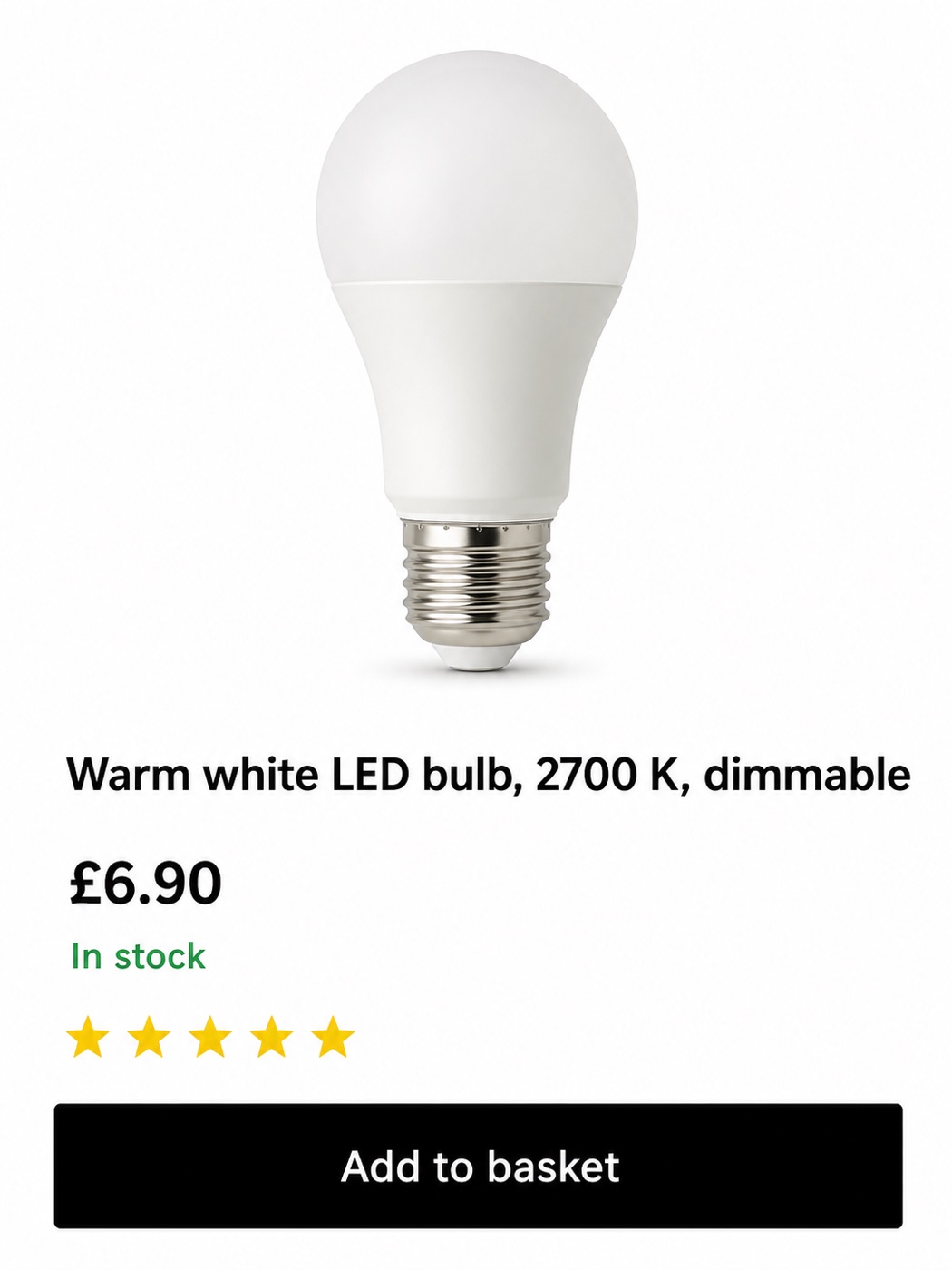
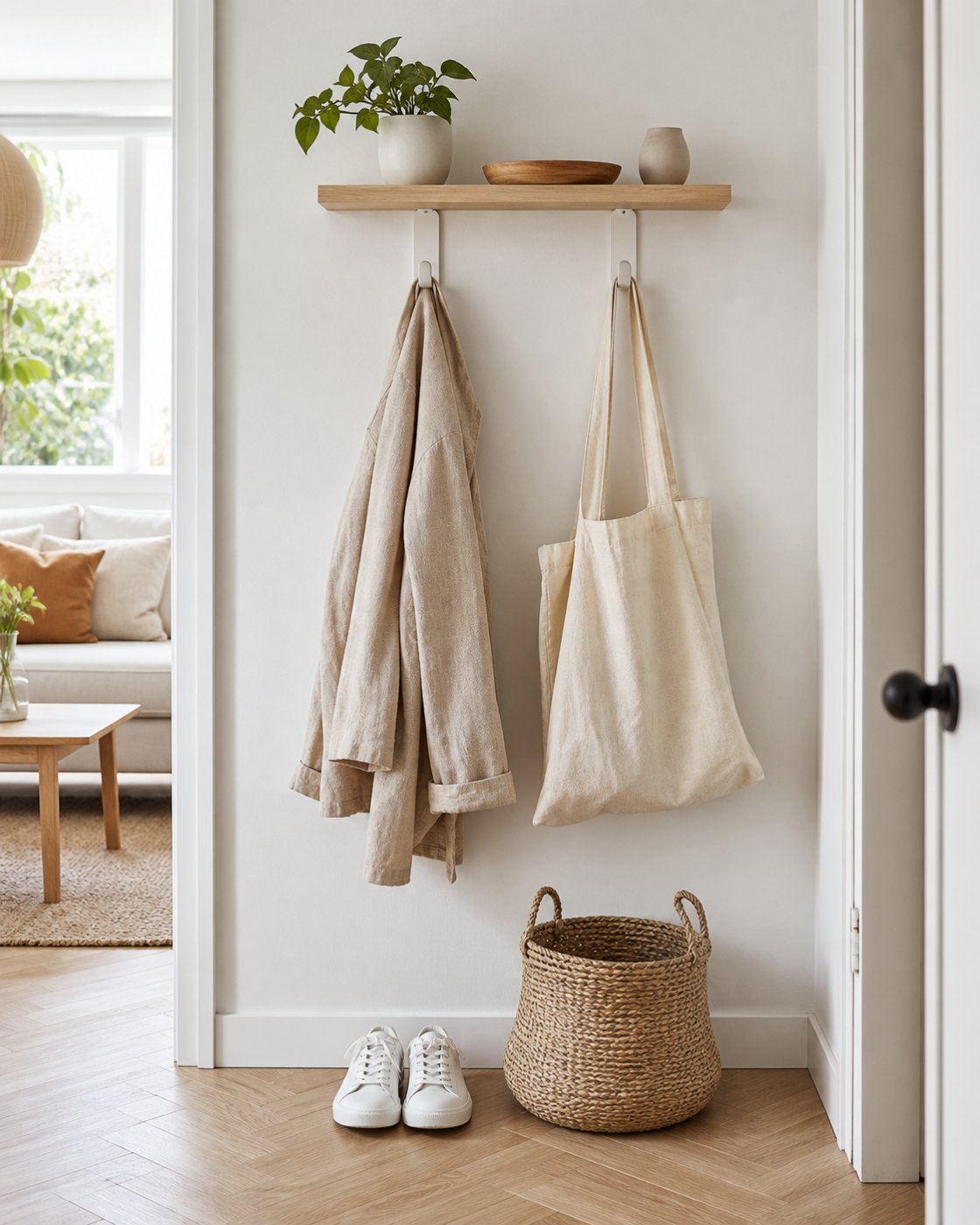
Notes and pictures, one thing.
The receipt, the measurements, the link to the shop: each one is a line next to the picture, so the board and its paperwork never drift apart.
Paste, drag in from your desktop, or attach from the menu.

One list, other jobs.
Plan your day
Tasks, meetings and notes on one page for today, with a timeline that shows the day you actually have.
See how →Keep a journal
One shortcut, one line, done. Entries live next to your plans, not in an app you forget to open.
See how →Run a project
Goals, tasks, decisions and dates in one outline, with the to-dos also on the day you will do them.
See how →Everything on your mind, in one place.
Open Nested List, type your first line, and put the next thought under it. That is the whole setup.